





Digital Banking
with outstanding digital effects.
Digital Banking is our passion.
Whether at home, work or on vacation, Online & Mobile Banking from First Entertainment is your secure and dependable digital option for successful management of all your financial needs.
In the palm of your hand
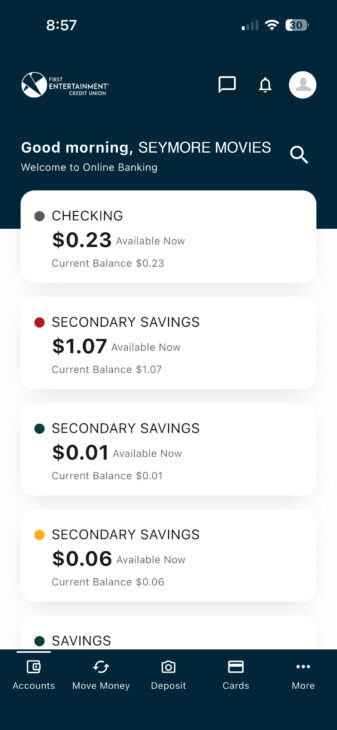
Life’s busy. We make banking one less thing to worry about with an easy-to-use mobile app, several online banking tools, and 24/7 chat services.
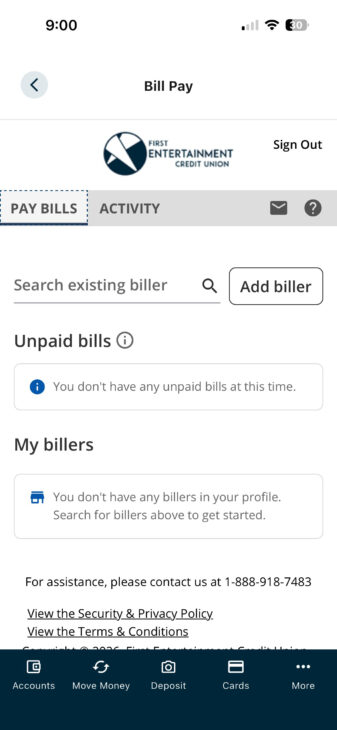
Pay Bills Fast
Save time and satisfy your obligations the easy way with online bill pay.
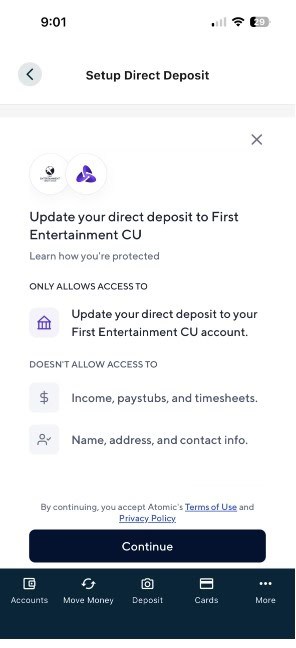
Set Up Direct Deposit
Easily set up direct deposit in just a few steps through Digital Banking.
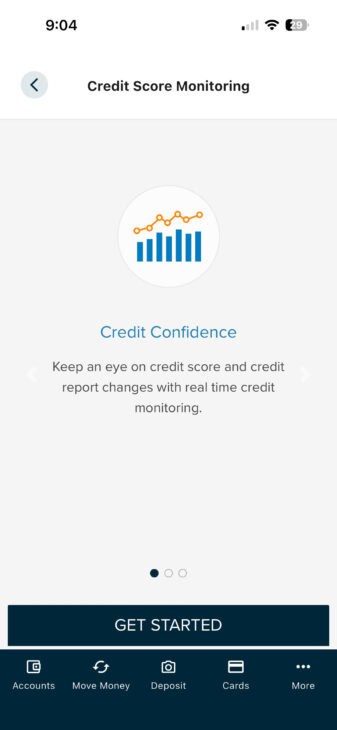
Free Credit Monitoring
Get free credit score updates and analysis, monitoring and alerts, plus a full view of your credit report.
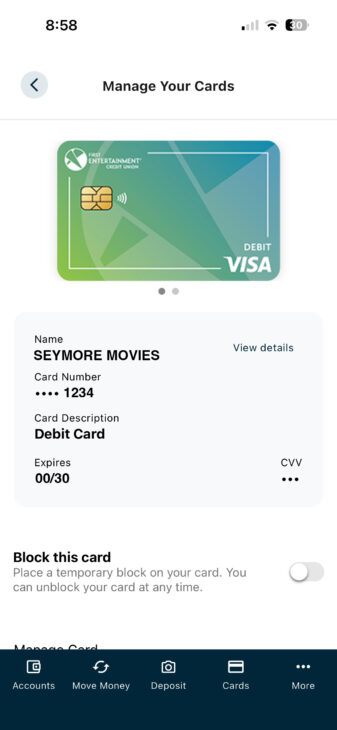
Card Manager
Set daily limits, travel notifications, and report lost or stolen credit cards with Card Manager.
Zelle®
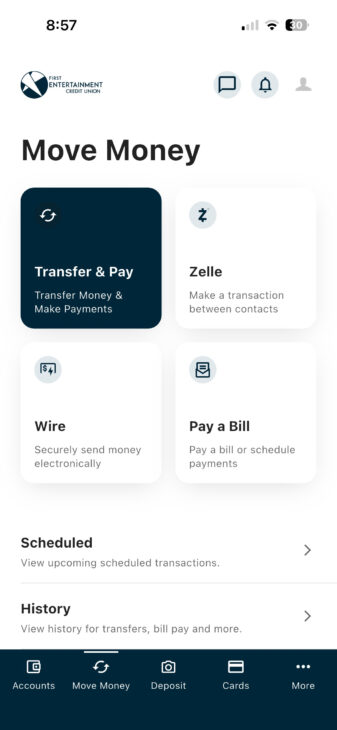
Send money with Zelle® – a fast, safe, and easy way to send money to friends, family and other people you trust, even if they bank somewhere different than you do.1
Mobile Deposit
Skip the trip to the branch and use your mobile device’s camera to deposit your next check.
Push Provisioning
Seamlessly integrated into digital banking, allowing you to add your card securely without manual updates, for both safety and convenience.
See our Digital Banking in action.
Scroll to view more features
Ready to get started?
Take Charge
of your digital banking experience. Get started now. It’s fast and easy!
What our members say
— Lauren S., Singer & DEI Manager Read the full member storyI went with First Entertainment because I saw it as the best option for my [actress] daughters and me, and I love how the Credit Union markets itself to the entertainment community.

What our members say
— Graham S., Producer/Director Read the full member storyFirst Entertainment has an increased level of understanding of the [entertainment] careers we lead, and the financial needs associated with them.

What our members say
— Eric Y., Associate Producer Read the full member storyFirst Entertainment takes the time to make sure that your money is being managed well. They give me the best rate of return based on my current financial outlook.

What our members say
— Djakarta J., Producer/Actress Read the full member storyWhen my car broke down during COVID and I was out of work, First Entertainment not only approved me as a member but also gave me a very competitive low-interest rate.

What our members say
— Artis C., Actor Read the full member storyFirst Entertainment has financing and tools specifically for creators of entertainment, and it’s not just the generic things you find in standard banks. I am a fan!

FAQs
You can register for Digital Banking on the Mobile App or by navigating to firstent.org on a desktop.
- Select “Register a New Account.”
- Choose your account type: “Register to my individual account” or “Register to my business account.”
- Disclosure: Read the disclosure, check the “I Agree” box, and select Continue.
- Confirm Your Identity: Fill out the required fields (SSN/Tax ID, EIN/TIN, Member Number, and Birth Date/Established Date).
- Verify Your Identity: Choose to receive a verification code via SMS Text, Email, or Voice Call.
- Enter Verification Code: Input the code sent to you using the method selected in Step 5.
- Create Username: Enter a unique username.
- Create Password: Enter a password. Once completed, you’ll be routed to your dashboard and can begin your Digital Banking journey!
You can recover your login credentials by visiting the login page on the First Entertainment Mobile App or at firstent.org on Desktop.
To Recover Your Username:
- Select “Forgot Username or Password?”
- Choose “Find my personal username” or “Find my business username.”
- Verify your identity by entering the required information:
- SSN/TAX ID or EIN/TIN
- Member Number
- Date of Birth or Established Date
- Choose how you’d like to receive your Username Recovery Code:
- SMS Text, Email, or Voice Call
- Enter the verification code sent to you. Once verified, your username will be displayed.
To Reset Your Password:
- Select “Password?”
- Choose “Reset my password” or “Reset my business sub-user password.”
- Verify your identity by entering the required information:
- Username
- SSN or EIN/TIN
- Member Number
- Date of Birth or Established Date
- Choose how you’d like to receive your Password Reset Code:
- SMS Text, Email, or Voice Call
- Enter the verification code sent to you, then create and confirm your new password.
- Must have a personal checking account (Value or Advantage)
- Note: Savings accounts, Coogan Accounts, Trust Accounts, Money Market Accounts, and Business Accounts are not currently eligible for Zelle®
- Must be age 18 or older
- Must be enrolled and use Digital Banking
- Must not have any Court Ordered Blocks
- Must be eligible to be part of the Zelle® Network
- Membership extend past 90 days
How to Enroll in Zelle®:
- Log in to Digital Banking.
- On Desktop: Select Transfer and Pay from the drop-down tab, then choose Send Money with Zelle®.
- On Mobile: Tap the Zelle® widget in the bottom center menu.
- Select Get Started.
- Read and accept the terms and conditions.
- Choose your preferred token (email address or mobile number).
- Enter the one-time passcode sent to your chosen email or mobile number.
- Link Zelle® to your personal checking account to complete setup.
You can enroll in eStatements by logging in through the Mobile App or Digital Banking.
Mobile App Instructions to Enroll in eStatements:
- Log in via the Mobile app.
- Tap More.
- Open the Documents dropdown and select Statements.
- Tap Settings (top right) and choose Statements and/or Credit Card.
- Toggle Online.
- Tap Continue (top right).
- Read and agree to the disclosure.
- Tap Save (top right) to complete your eStatements enrollment.
Desktop Instructions to Enroll in eStatements:
- Go to firstent.org and log in.
- Click the “Documents” tab and select “Statements.”
- In the Overview tab, click the gear icon next to Statements and/or Credit Card.
- Toggle Online and click Continue to complete your eStatements enrollment.
We have multiple safeguards in place that meet or exceed required regulations to protect your money and personal information. Our network is continually monitored to ensure it is performing at the optimum level of protection. Here are some additional methods we use:
- 256-bit encryptionof data.
- Unique usernameto provide authentication.
- Multi-factor authenticationto verify you’re using our official website.
- Session timeouts when there is no activity for several minutes.
- Date/time stamp visibilityso you can confirm your history of sign-ins.
- Numerous secure firewallsprotect our digital banking and deter unauthorized network access.
- Secure Message Center lets you answer security questions privately via digital banking.
The Immediate Debit enhancement will not impact existing user-level limits. The process to adjustand manage limits will remain unchanged.
You can make your credit card payment(s) through Digital Banking as follows:
- Log in to your Digital Banking via desktop.
- On your Dashboard, click the “PAY” icon on the credit card you wish to make a payment to.
- On the Transfers page, select the First Entertainment Checking or Savings account you wish to pay from.
- Enter the amount you wish to pay and when. You can pay your current balance, statement balance, minimum due or other amount.
- Log in to your Digital Banking via the mobile app.
- On your Dashboard, select the Credit Card account you wish to make a payment to.
- Then click on the “Pay” icon .
- On the Transfers page, select the First Entertainment Checking or Savings account you wish to pay from.
- Enter the amount you wish to pay and when. You can pay your current balance, statement balance, minimum due or other amount.
- Log in to Digital Banking via desktop or the mobile app.
- Under “Card Management” select “View Credit Card“
- Select the “Make Payment” option
- You can then “Choose a Payment Account” (external or internal) or
- Select the “Edit” button to change or add a new account to pay from
- Enter the amount you wish to pay and when. You can pay your current balance, statement balance, minimum due or other amount.
- You can also enroll in “Automatic Payments” by selecting the “ENROLL” option next to “Automatic Payments” on this page.
Not finding what you’re looking for? See all FAQs.
Download our Mobile Banking App.
Access key digital banking features using your favorite mobile device.2
Download on the App Store:

Download on Google Play:

Disclosures
- 1
-
To be eligible for Zelle®, you must be a member for at least 90 days. To send or receive money with Zelle®, both parties must have an eligible checking or savings account. Zelle® and the Zelle® related marks are wholly owned by Early Warning Services, LLC and are used herein under license.
- 2
-
Blackberry and Windows Phone Users: Using your Smartphone’s Internet browser, visit and bookmark our mobile banking site. If you have questions about using Mobile Banking, just call us at 888.800.3328 and we’ll help you get started.